Samstag, 24. April 2010

A Note

Just a short note to let you all know that I left all my CT Teams.
At the moment I don't have enough time.
But don't worry I will keep on writing tutorials :)
There a millions of freebies and I've got a huge HD with a lot of stuff to play with!

Hugs
Seven

Mittwoch, 7. April 2010

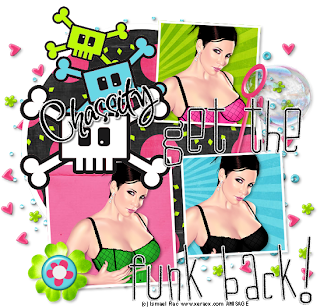
Get The Funk Back


This tutorial was written by and copyrighted to Seven on 07th April 2010

For this tutorial you will need:

- Chassity's FTU-kit The 80ies Goodie Train which you can download here
- 3 tubes of your choice (I used a cool tube of Ismael Rac which you can purchase at AMI)
- Cora's Funk Template which you can download from her blog here (It's in the second download)
- font of your choice (I used Inspiration)


Let's start:

- Open your template and duplicate it with SHIFT+D.

- Highlight the white frame of the circle and add a dropshadow.

- Highlight the circle inlay.
Selections - All - Free - Not Free.
Delete the layer.
Copy and paste a paper of your choice.
Selections - Invert.
Press delete button.
Selection none.

- Highlight one of the small rectangle frame inlays.
Selections - All - Free - Not Free.
Delete the layer.
Copy and paste a paper of your choice.
Selections - Invert.
Press delete button.
Copy and paste your first tube and arrange it your frame.
Press delete button again.
Selection - none.
Add a dropshadow to your tube.
Merge the 3 frame layers (frame, tube, frame inlay) visible and dropshadow it.

- Repeat the above mention step with the other two rectangle frames.
Add different paper and tube.

- Highlight the "skulls"
I changed the colors that they fit to my tag.
Dropshadow them.

- Copy and paste frame4, resize if necessary and dropshadow it.
Move it under your big white circle layer.

- Copy and paste element4, resize and dropshadow it.
Arrange it over frame4 under the white circle.

- Copy and paste element3, resize and dropshadow it.
Mirror it vertical and arrange it on the right side of your tage.
(I moved a part under one of the frames and one part over a second frame)

- Copy and paste element11, resize and dropshadow it.
Arrange it to the left on the edge of your rectangle frame.

- Choose your font and as background color black.
Write your name and rotate it a bit.
Change the vector to a raster layer.
Selections - All - Free - Not Free.
Expand the selection about 2 or 3.
Add a new rasterlay and fill it with white.
Selection none.
Add some noise and move it under your name.
Merge these both layers and add a small dropshadow.

- At least just add copyright/watermark infos and save as!

Dienstag, 6. April 2010

Natures Gift


This tutorial was written by and copyrighted to Seven on 06th April 2010.


For this tutorial you will need:

- PTU-kit Naturel from Sky Scraps which you can purchase here
- tube of your choice (I used the fantastic artwork of Igolochka)
- a nature picture of your choice (I got mine at stock.xchng)
- font of your choice (I used FleurDeLeah)


Let's start:


- Ope a new canvas 550 x 550 px.

- Copy and paste Frame9 and resize it if needed.

- With your magic wand click inside of the frame end expand the selection about 3px.

- Copy and paste a paper of your choice and move it under the frame layer.
Selection invert and press delete button.

- Copy and paste your picture and arrange it in your frame.
Press delete again.
Selection none.

- Reduce the opacity of your picture to 25-35 %.

- Dropshadow your frame.

- Copy and paste your tube and arrange it in your frame.
Erase parts of the body which are lookig throught the border below.
Dropshadow it.

- Copy and paste Element6, resize and dropshadow it.
Move this layer under your frame and paper layers and arrange it a bit to the bottom.

- Copy and paste Mesh3, resize and dropshadow it.
Arrage it under your frame a bit to the top.

- Highlight your frame layer.

- Copy and paste Mesh2, mirror it vertical and resize it.
Arrange it to the right of your frame.
Add a dropshadow.

- Copy and paste Feuillage1.
Resize and dropshadow it and arrange it also to the right over your mesh.

- Copy and paste Butterfly3, resize and dropshadow it.
Arrange it to the top on the left side.

- Copy and paste Feuillage3, resize and dropshadow it.
Move it to the edge of your frame on the left.

- Copy and paste Flower1 and resize it.
Arrange it over your feuillage and add a dropshadow.

- Choose two matching colors and your font and write your name.
Add a small dropshadow and merge all visible.

- At least add your watermark/copyright and save as.

Ready!

Mittwoch, 31. März 2010

A Day without a Smile


This tutorial was written by and copyrighted to Seven on 31th March 2010.


For this tutorial you will need:

- PTU-kit Tweet Heart from Grunge and Glitter Scraps which you can purchase here
- tube of your choice (I used the fantastic artwork of Suzanne Woolcott which you can purchase here)
- 2 fonts of your choice (I used Mea Culpa and Mrs Saint-Delafield)


Let's start:


- Open a new canvas 650 x 450 px.

- Copy and paste a scalloped frame (frame5) and resize it if needed.

- With your magic wand click inside of the frame and expand the selection about 3.

- Copy and paste a paper of your choice and move it under the frame layer.
Selection invert and press delete button.
Selection none.

- Copy and paste some hearts (chromeheartcluster) and resize them.
Chance the luminance to overlay.

- Highlight your frame layer and dropshadow it.

- Copy and paste a flowersterm, resize and dropshadow it.
Move it to the left of your frame.

- Copy and paste a flowertop of your choice.
Resize it and add a dropshadow.

- Copy and paste the fence, resize and dropshadow it.
Arrange it on the border of your frame.

- Copy and paste a wordart, resize it and add a dropshadow.
Move it in the middle of the top border of your frame.

- Copy and paste your tube.
Resize it if needed and arrange it to the right.
Add a dropshadow.

- Copy and paste the birds and resize them.
Arrange one to rhe left and one to the right of your tag.
Dropshadow.

- Choose a dark matching background colour and type your text in the middle of your frame.
Add a small dropshadow.

- Choose a matching background and forgrround colour and your second font and add your name.
Dropshadow it.

- At least just add copyright/watermark infos and save as.

Ready!


Industrial Fae


This tutorial was written by and copyrighted to Seven on 31th March 2010.


For this tutorial you will need:

- PTU-kit Toxic from Sky Scraps which you can purchase here
- tube of your choice (I used the fantastic artwork of Joseph Corsentino which you can purchase at MPT)
- font of your choice (I used Hawaii_Killer)


Let's start:


- Open a new canvas 550 x 550 px.

- Copy and paste a round frame of your choice (Frame5).
Resize it if needed.

- With your magic wand click inside of the frame.

- Copy and paste a paper of your choice and move this layer under the frame layer.
Invert the selection and press delete button.
Invert the selection again.

- Add a new raster-layer

- Copy a broken glass layer (glass2) and paste it into the selection.
Selection none.

- Add a dropshadow to your glass and frame layer.

- Copy and paste your tube.
Resize it if needed and dropshadow it.
Arrange it in your frame and erase parts of the body/legs which are looking through the border of your frame.
(see my tag above for help)

- You can merge these layers visible.

- Copy and paste E10, resize it and move this layer und your frame layers.
Arrange it a bit to the bottom.

- Copy and paste E26, resize and dropshadow it.
Arrange it to the left a little bit to the top.
Some parts should be covered under the frame layer.

- Copy and paste MetalE6, resize and dropshadow it.
Arrange it in the middle.
Parts of it should be in the right top corner and in the left lower corner.

- Highlight your frame layer.

- Copy and paste a sign (E14), resize and dropshadow it.
Arrange it to the right top corner over your chain.

- Copy and paste Skull 6.
Resize and dropshadow it.
Arrange it under your sign.

- Copy and paste the spider (blackWidow) and arrange it to the right.
Dropshadow and resize it.

- Choose two matching colours and your font and write your name or text.
Add a small dropshadow.

- At least add watermark/copyirght infos and save as.

Yeaaah! It's done!


Sonntag, 14. März 2010

Blue


This tutorial was written by and copyrighted to Seven on 14th March 2010.


For this tutorial you will need:

- PTU-kit So Blue from Cora's Creations which you can purchase here
- tube of your choice (I used the fantastic artwork of Nico Niemi)
- font of your choice (I used ToonishRegular)

Let's start:

- Open a new canvas 600 x 550px.

- Copy and paste frame-03 and resize if necessary.

- With your magic-wand click inside the four rectangels and expand the selection about2.

- Copy and paste a paper of your choice.
Move this layer under your frame layer and invert the selection.
Press the delete button on you keybord and invert the selection again.

- Copy and paste your tube and arrange it in these four frames.
Selection invert and press delete again.
Selection none.

- Dropshadow your tube and your frame.

- Merge these layer visible.

- Copy and paste frame-01 and resize it smaller.
Rotate it about 90 degrees to the left.
Arrange it the border in the middle of your frame and add a dropshadow.

- Copy and paste the star and resize it.
Mirror it horizontal and move it over your frame-01 a little bit to the left.
Dropshadow it.

- Copy and paste flower-04 and resize it.
Move it to the boarder of your frame and dropshadow it.

- Copy and paste tag2, resize it and arrange it on the right top corner of your frame.

- Copy and paste flower-01, resize and dropshadow it.
Arrange it on the right top corner over a bit over your tag.

- Choose a bright foreground colour, a blue background color and your font.
Write your name or text and arrange it on your tag.
Dropshadow it.

- At least just add copyright and/or watermark infos and save as.

Wasn't it easy?

Samstag, 13. März 2010

Bella and Edward


This tutorial was written by and copyrighted to Seven on 13th March 2010

Hrr Hrr, I think I'm one of the few people who don't like or who haven't ever read or seen Twilight.
I don't like cheeeeeesy Vampire Stories. Vampires are something mystical and dangerous. I prefer older vampire ones like Nosferatu, Dracula etc. Blade is very nice too. xD
But back to topic I've got a lot of lovely friends who are Twilight addicted.
So, I dedicate this tut to all my twilight loving friends!


For this tutorial you will need:

-Edward-kit from Polka Dot Scraps which you can get here
- 1 (Twilight) tube of your choice (I used the fabulous art of Zindy Nielsen. I used a free art and you can download it on her site.)
- Font of your choice (I used Monica)


Let's start:

- Open a new canvas 550x550px.
You can resize it later.

- Copy and paste frame1 and resize it if necessary.

- With your magic wand click inside of the three circles and expand the selection about 3.

- Copy and paste a paper of your choice.

- Selection invert and hit delete.
Selection none.
Move this layer under the frame layer.

- Highlight the frame layer and click with your magic wand in the first circle.
Expand the selection about 3.

- Copy and paste your tube and resize it if necessary.
Arrange Edward's or Bella's head in the circle.
Selection invert and press delete.
Selection none.
Move this layer und the frame layer.

- Repeat this step with the other 2 circles.
Add in one of them the head of the other and in the middle one both.

- Highlight your frame layer and dropshadow it.

- Merge these layers visible.

- Copy and paste a bow of your choice (element40), resize and arrange it on your frame where the first and second circle meet each other.
Duplicate this layer and mirror it vertical.
Move this layer down where the second and third layer meet each other.
Dropshadow both bows.
(See my tag above for help)

- Copy and paste a flower (element43) and resize it.
Move it over the middle of your first bow.
Duplicate and mirror the flower.
Move it over your second bow.
Dropshadow them

- Copy and paste the paperheart (element21) and mirror it vertical.
Move this layer under your frame layer.
Arrange the heart under your first circle a bit to the right.
Dropshadow it.

- Copy and paste the clock (element47) and resize it if necessary.
Move this layer under your frame layer and add a dropshadow.
Arrange in the bottom part of your tag.

- Choose a matching background colour and your font.
Write your name or text and rotate it about 90 degrees.
Add a small dropshadow and arrange it.

- At least just add copyright infos and/or watermark and save as.

Easy, hu?

TOU

All tutorials are written by myself and any resemblance to any other tutorial is purely coincidental.
You are allowed to make tags, stats, layout what ever your want with them.
You are not allowed to make any monetary gain with them.
You are not allowed to hotlink.
I do not allow to translate it whithout my written permission!


It would be great if you mail me your results at coroners.sun@gmail.com

  © Blogger template Ramadhan Al-Mubarak by Ourblogtemplates.com 2008

Back to TOP